Register for Exam
After you sign up for the Provexam Platform, first register for the exam to receive eligibility (ATT).
Follow these steps to register for the exam:
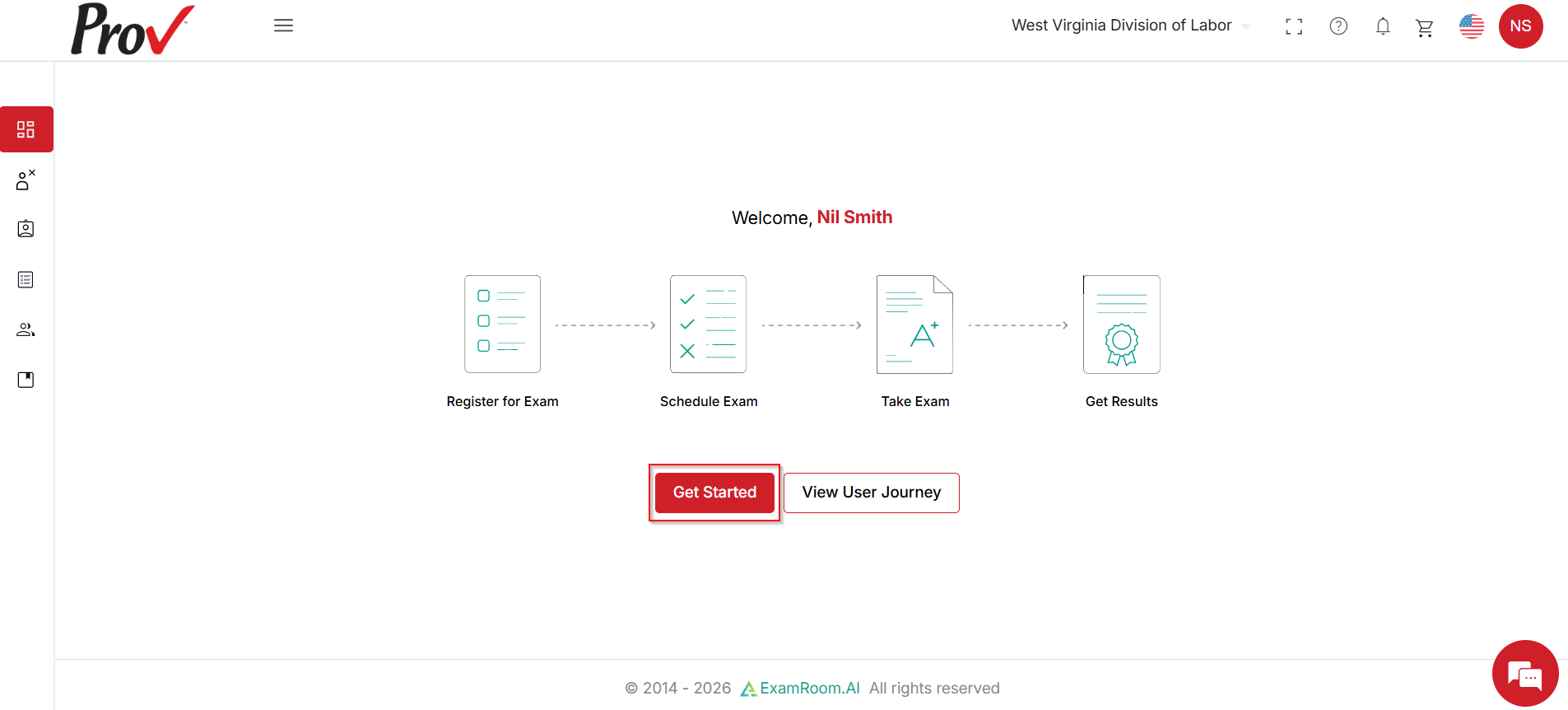
- Log in to your Provexam Platform, go to the dashboard, and select Get Started.
- Alternatively, open the side menu, find Applications, and click + Register Exam.
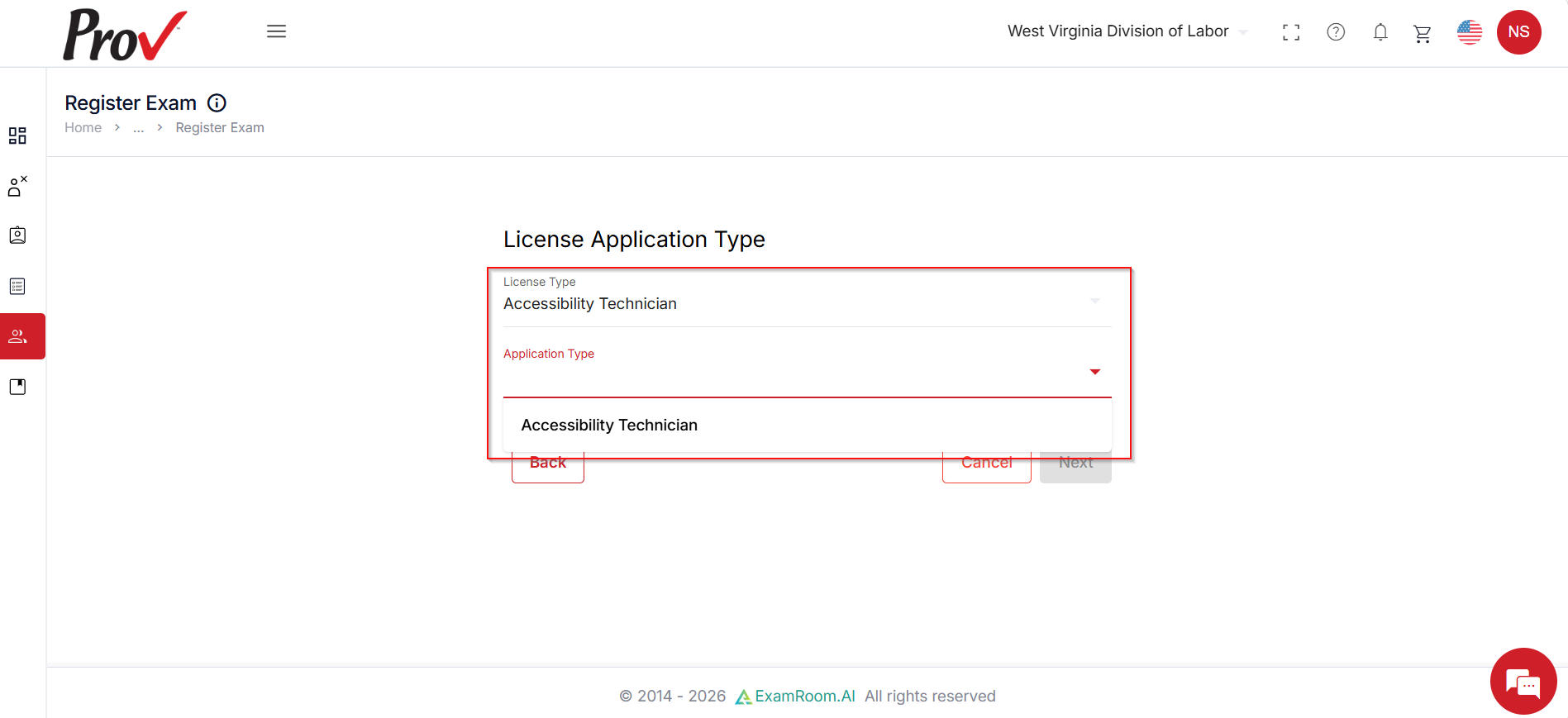
- Under License Application Type, select License Type and then choose Application Type from the provided dropdown menu.
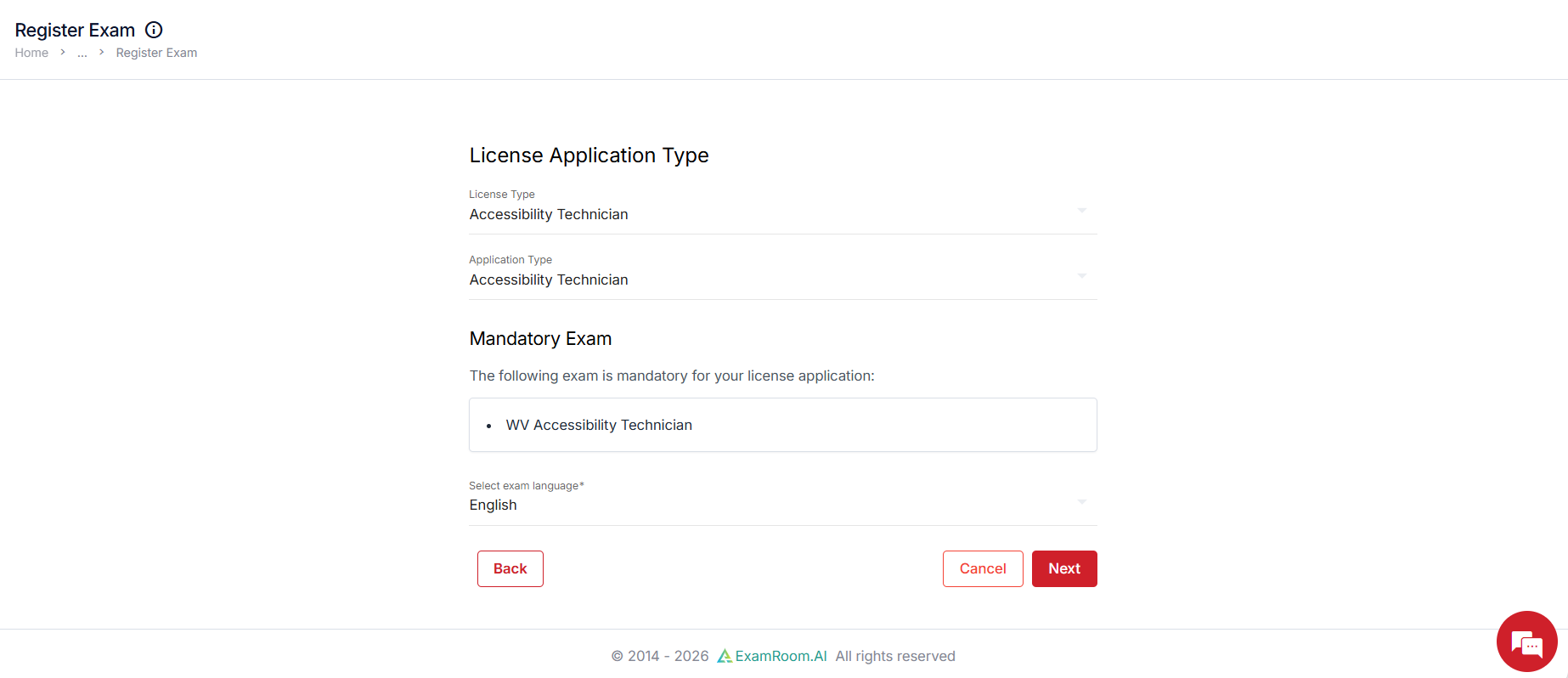
- Mandatory Exam details for the selected license application are shown. Review the information, select a language if applicable, and click Next to proceed.
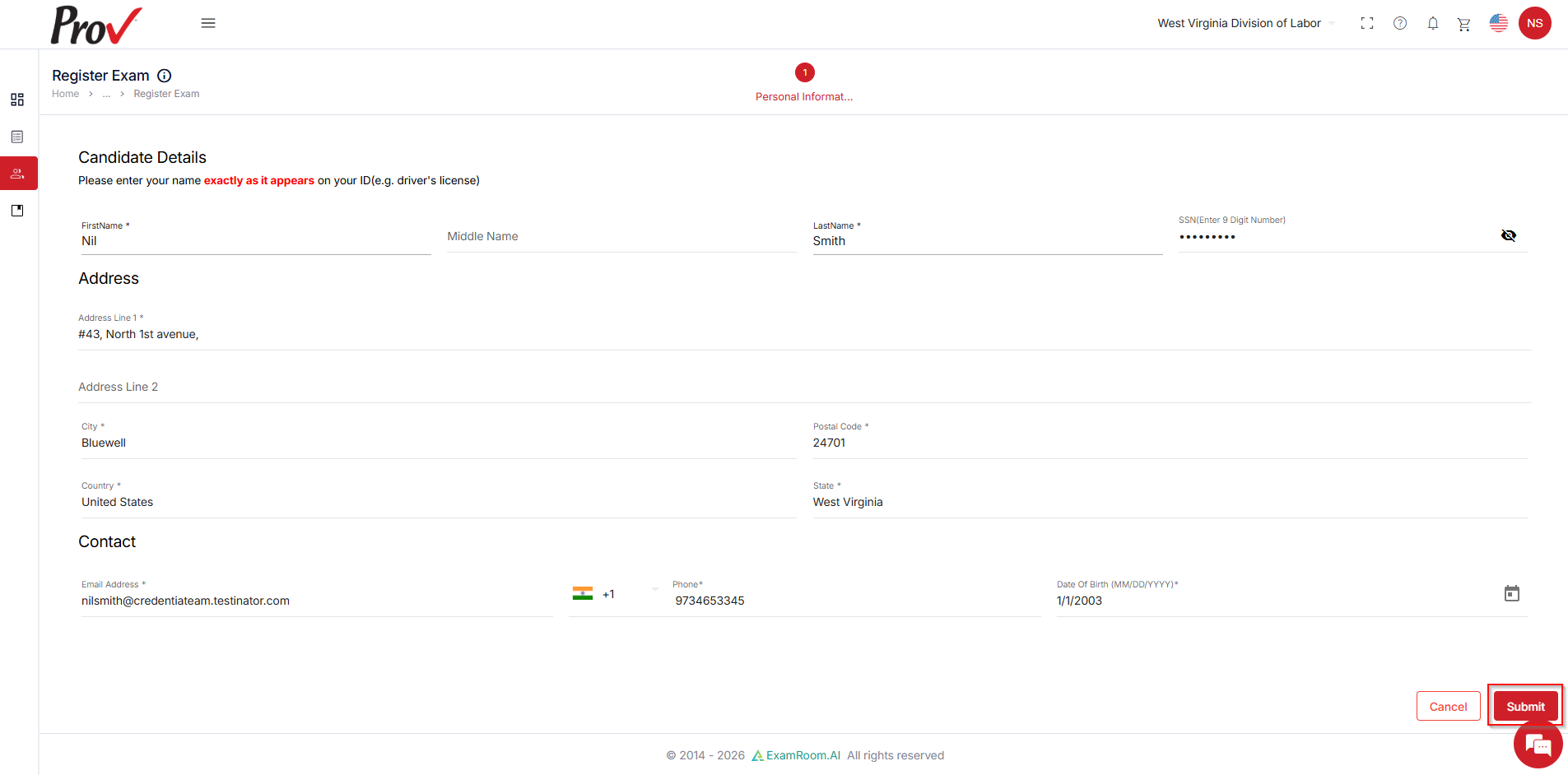
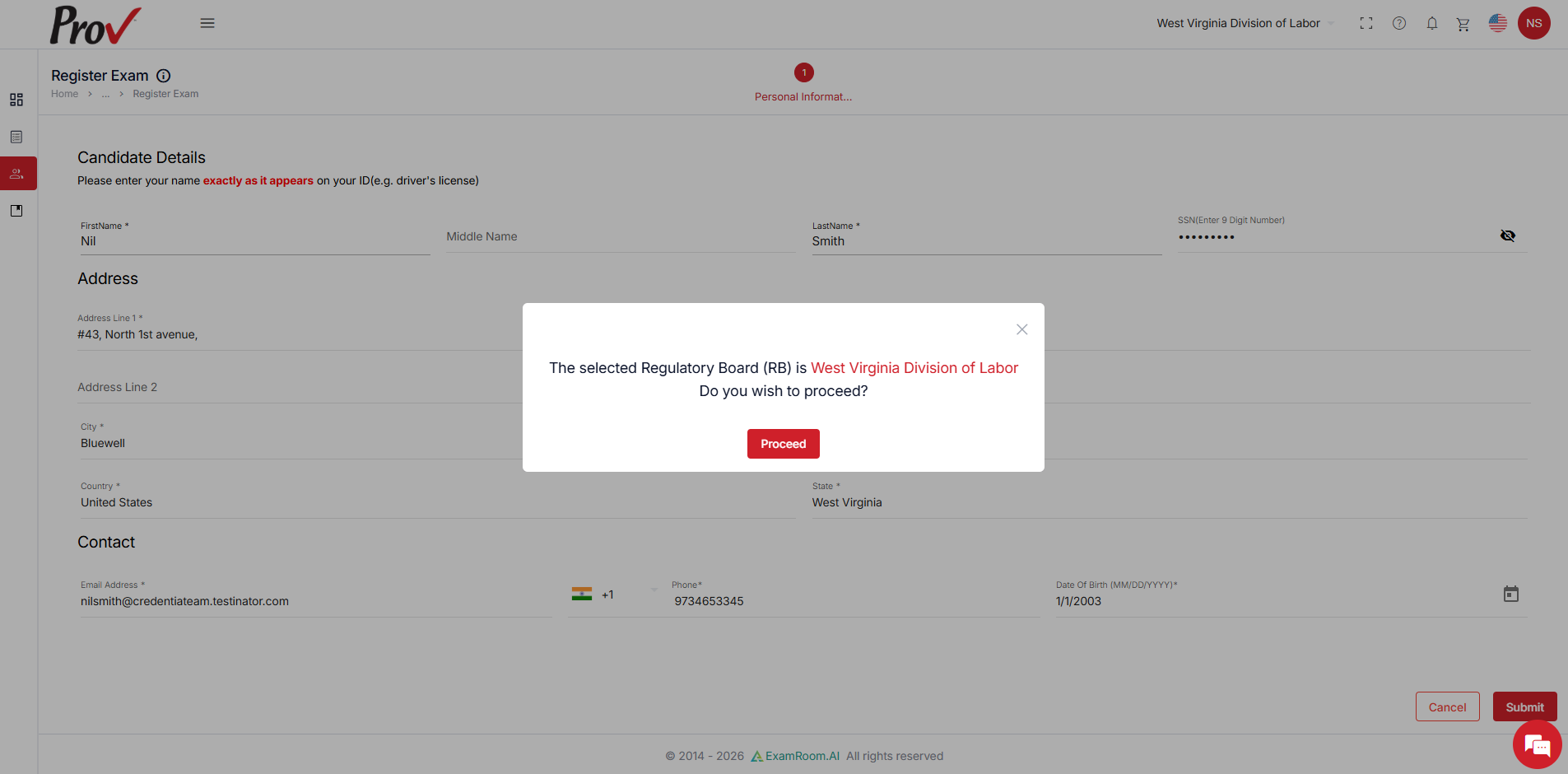
- Review the prefilled details in the exam registration form, ensure you enter all the required fields, and then click Submit to submit the registration form.
- A confirmation pop-up appears displaying the selected Regulatory Board (RB) name. Verify it and click Proceed to confirm.
- Once submitted, a confirmation notification is displayed on the screen, and the current status of the application can be viewed in the application section.
Note:- For automatically processed Exam Registration of the chosen RB or License type, all eligible candidates receive their ATT (Authorization to Test) immediately, allowing you to schedule the exam without delay.
- If processed manually, you must wait until the status changes to 'ATT Issued' to move forward.
- To know how to schedule your exam, refer to: Schedule an Exam.