Sign Up
Navigate to the Sign Up page
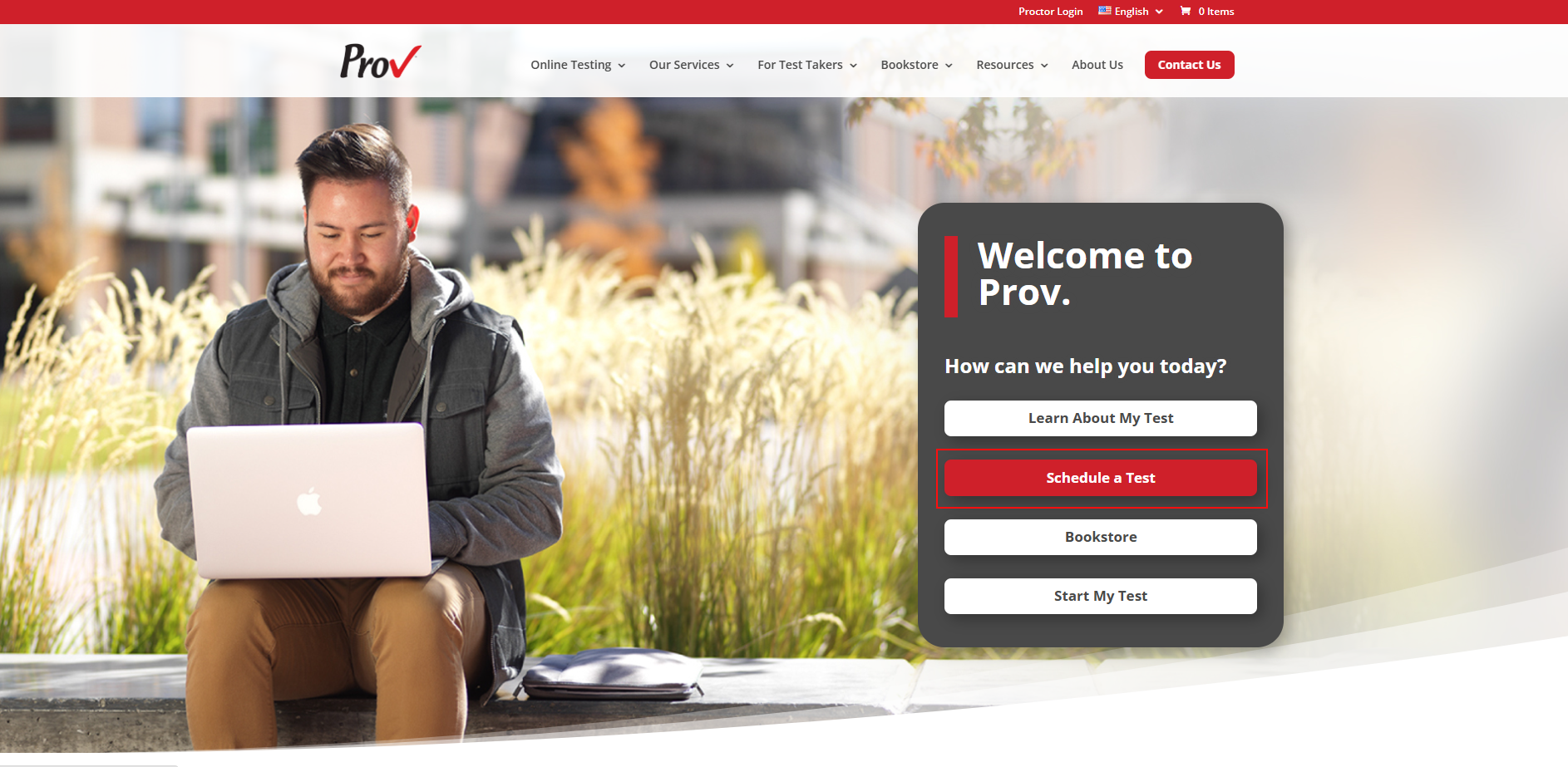
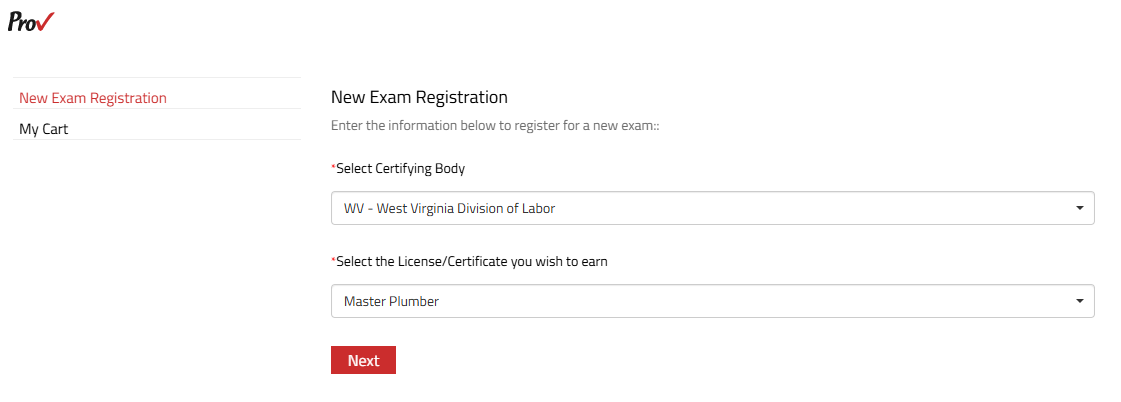
- Visit provexam.com and click the Schedule a Test option.
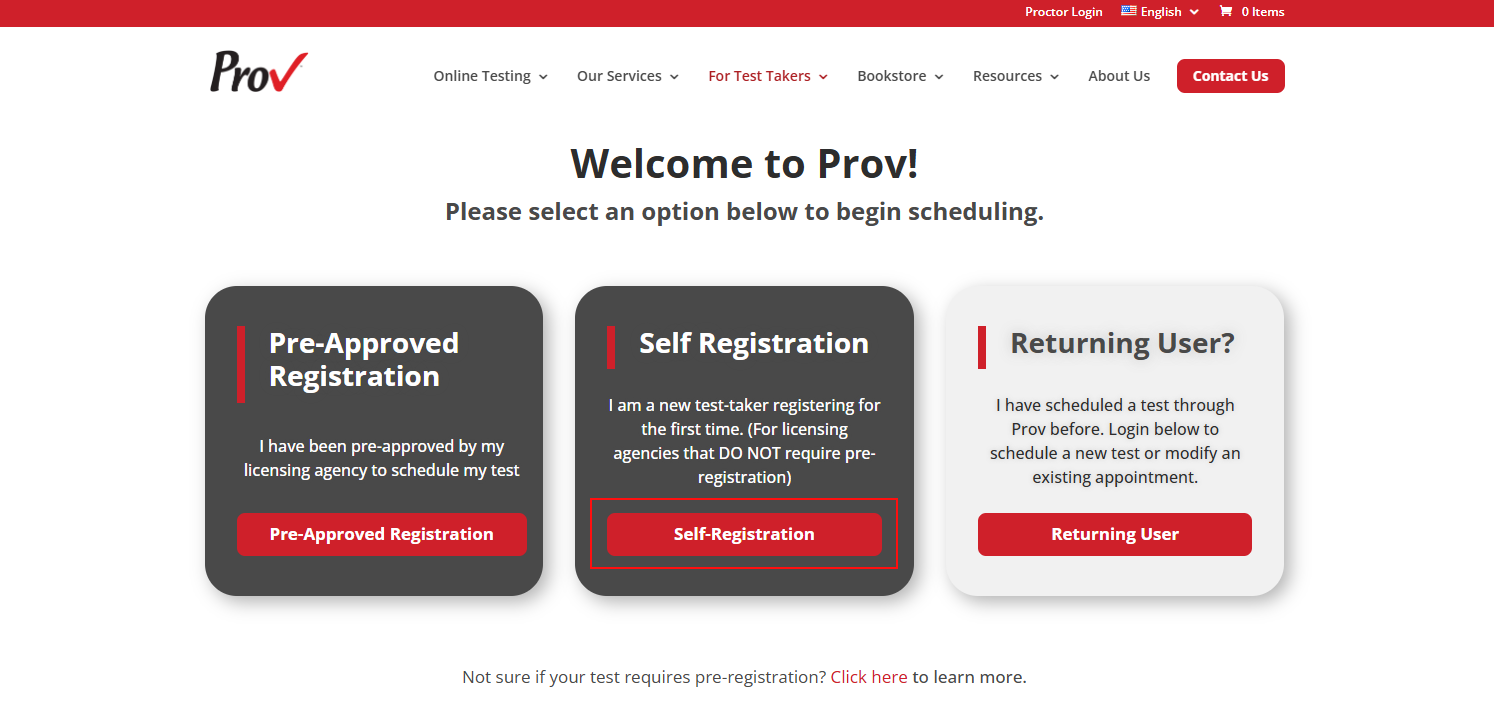
- Select Self-Registration.
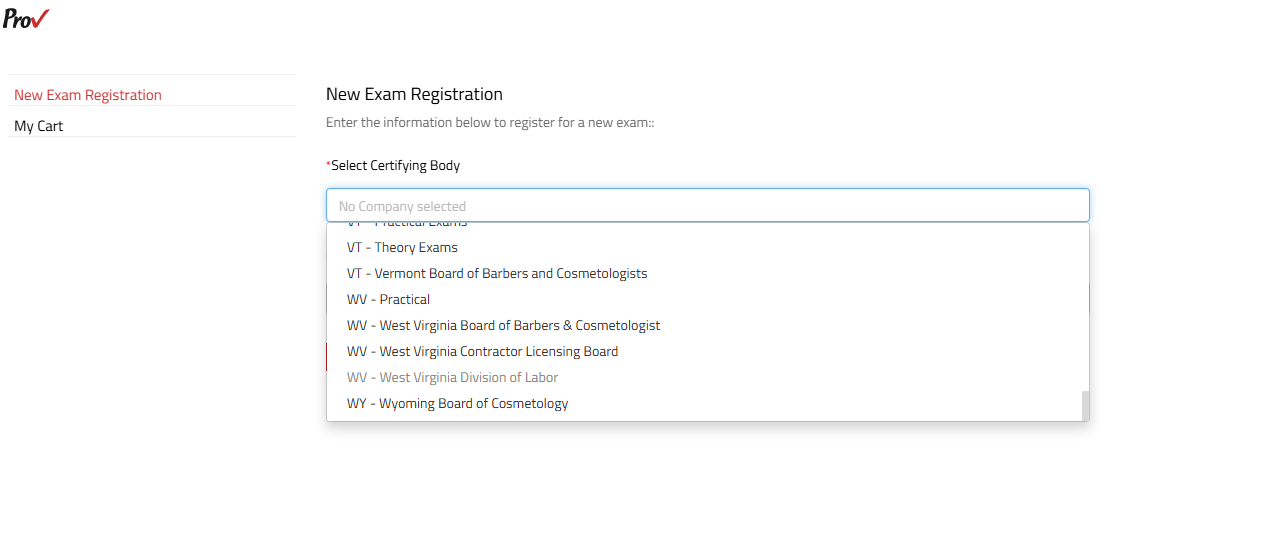
- Select Certifying Body from the dropdown menu.
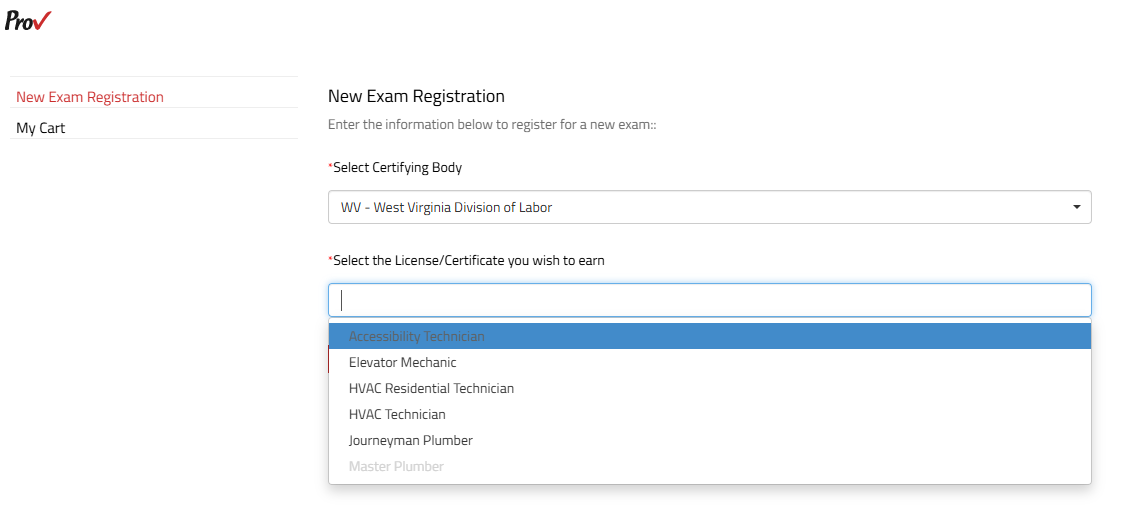
- Select the License/Certificate you wish to earn from the dropdown menu.
- Click Next.
Fill in the required information to sign up to the Prov Platform
- Verify the pre-selected Certification Body or select it from the dropdown menu to register.
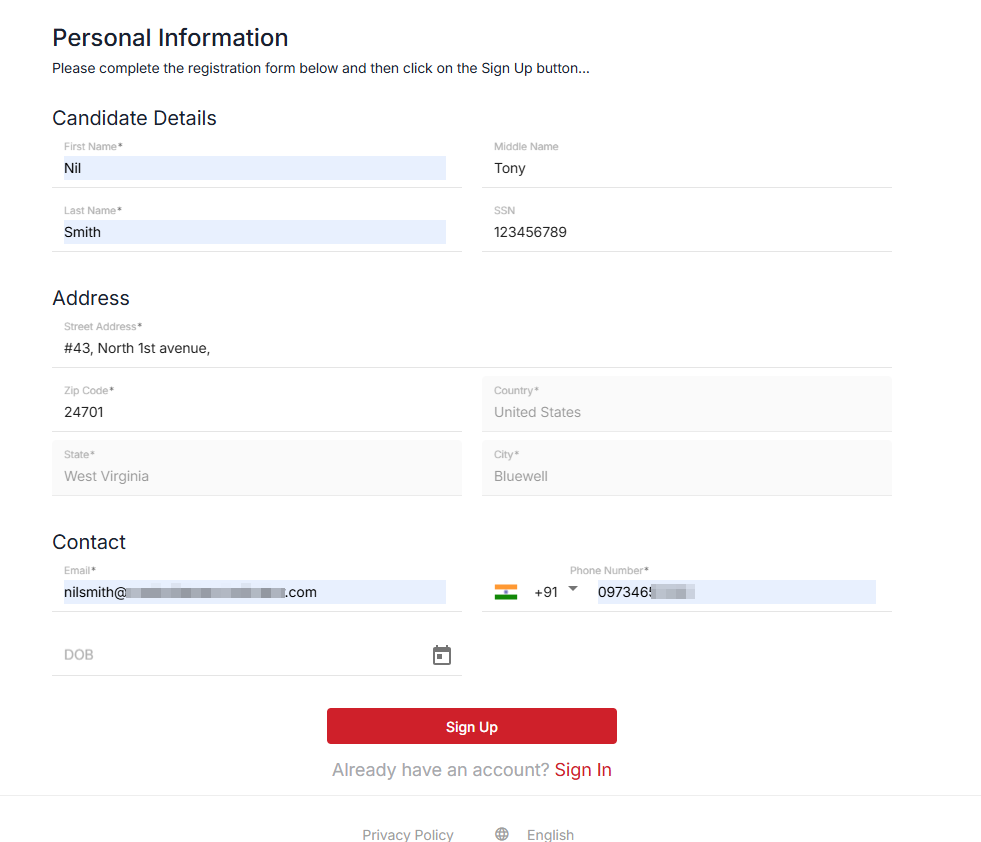
- In the personal information section, provide your (candidate’s) basic details, address, and contact information. You must enter all the required fields, which include:
- Enter your First and Last Name in their respective fields. Use the Middle Name field if applicable.
- You can also provide your Social Security Number in the SSN field.
- In the Address section, enter your Street Address and Zip Code. Once you input the zip code, fields such as country, state, and city will automatically fill in based on the zip code entered.
- Enter your Email Address and Phone Number in the Contact section.
- You may also add your date of birth in the DOB field by clicking the calendar icon and selecting your date from the pop-up calendar.
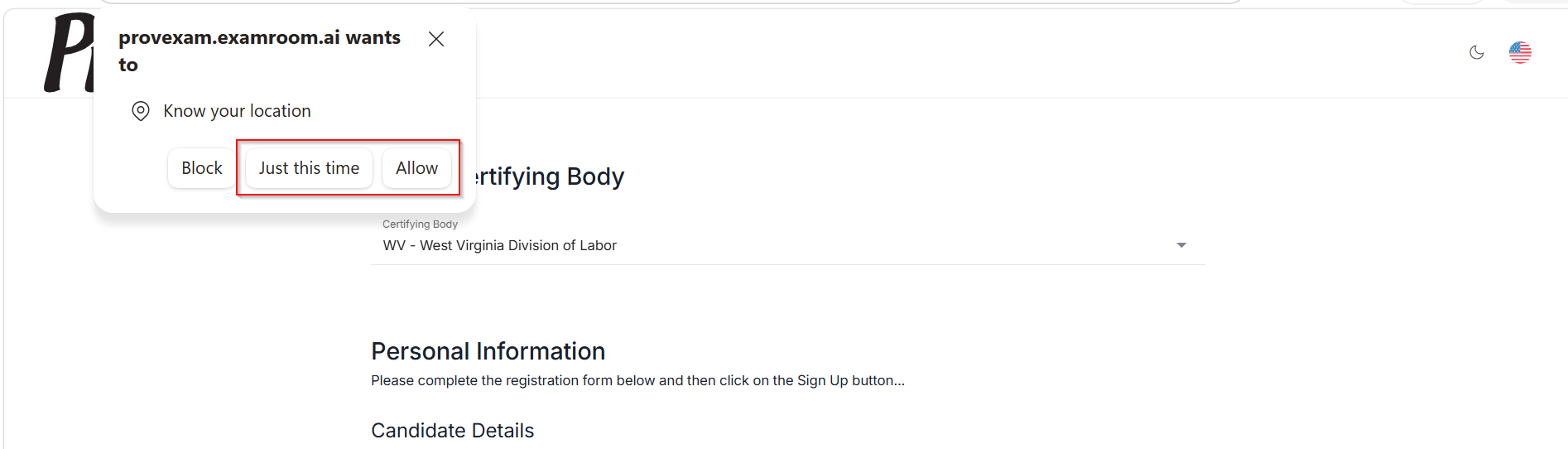
- If a pop-up appears on your screen to provide location access. Click Allow to grant access to your location.
- If a pop-up appears on your screen to provide location access. Click Allow to grant access to your location.
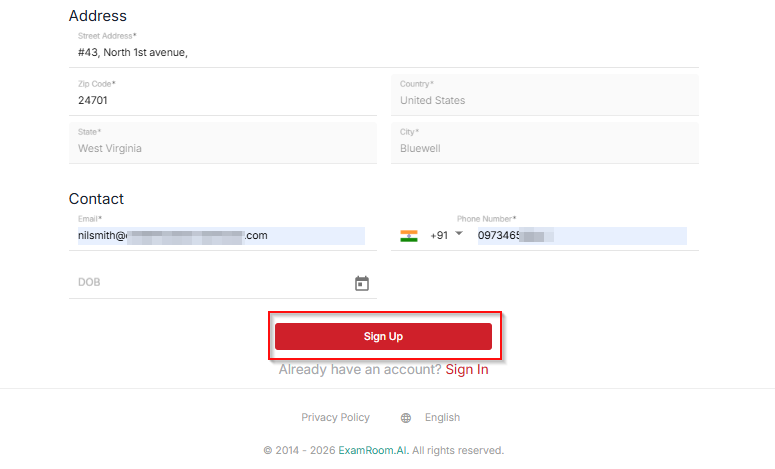
- Once you enter all the mandatory fields on the sign-up page, click the Sign Up button.
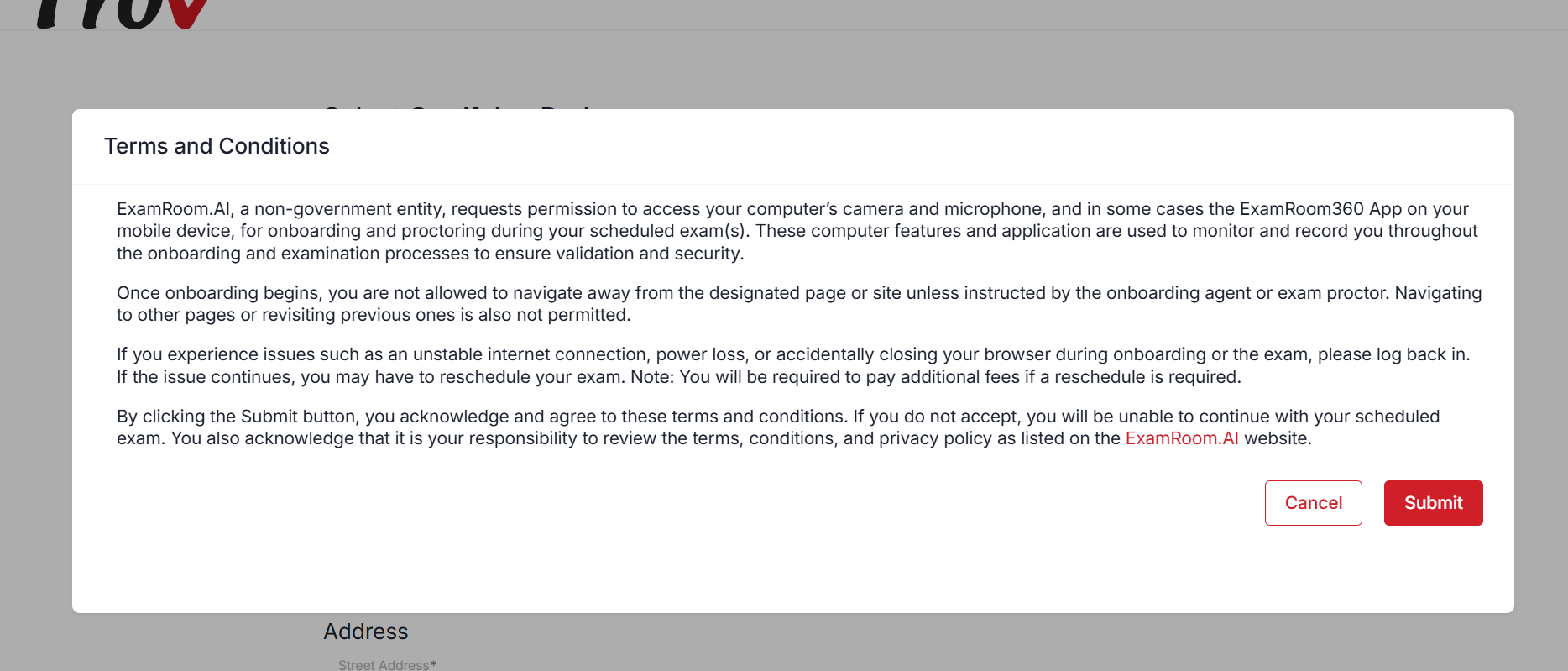
- A pop-up appears displaying the terms and conditions. Read the details and click the Submit button to continue.
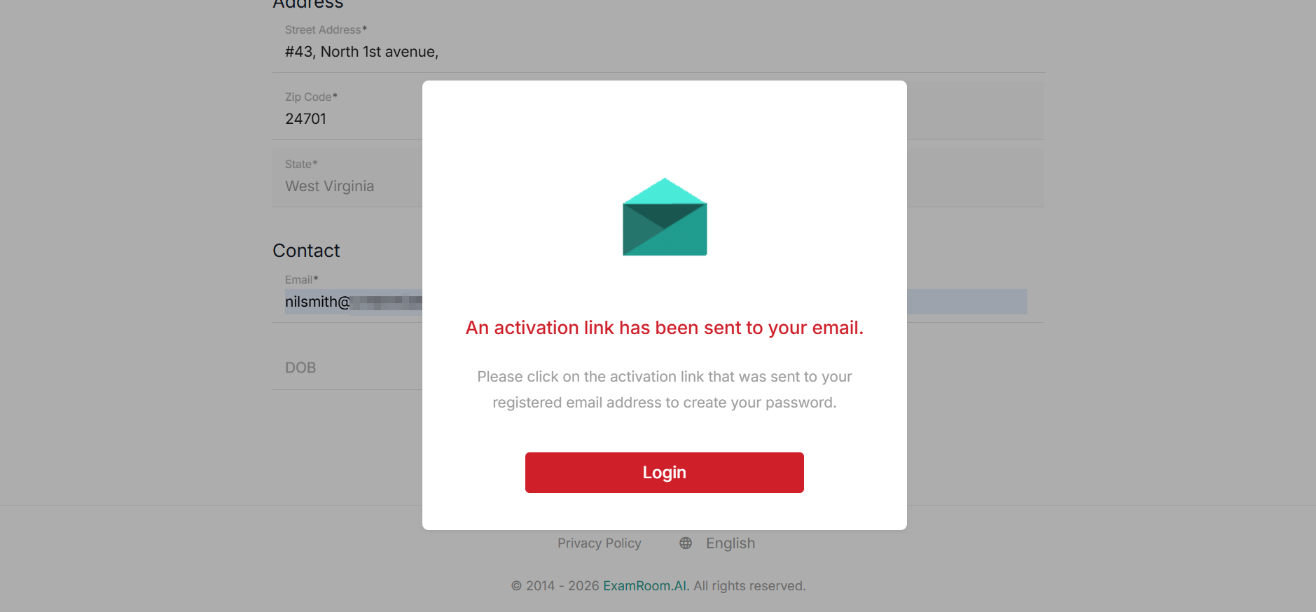
- A dialogue box is displayed mentioning that an activation link will be sent to your email address.
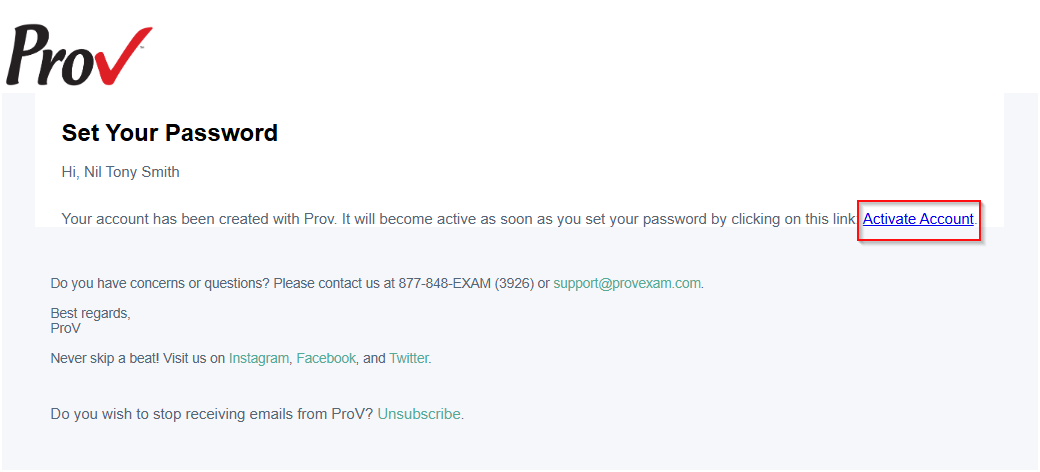
- Check your email inbox and click the Active Account (hyperlink) to set your password.
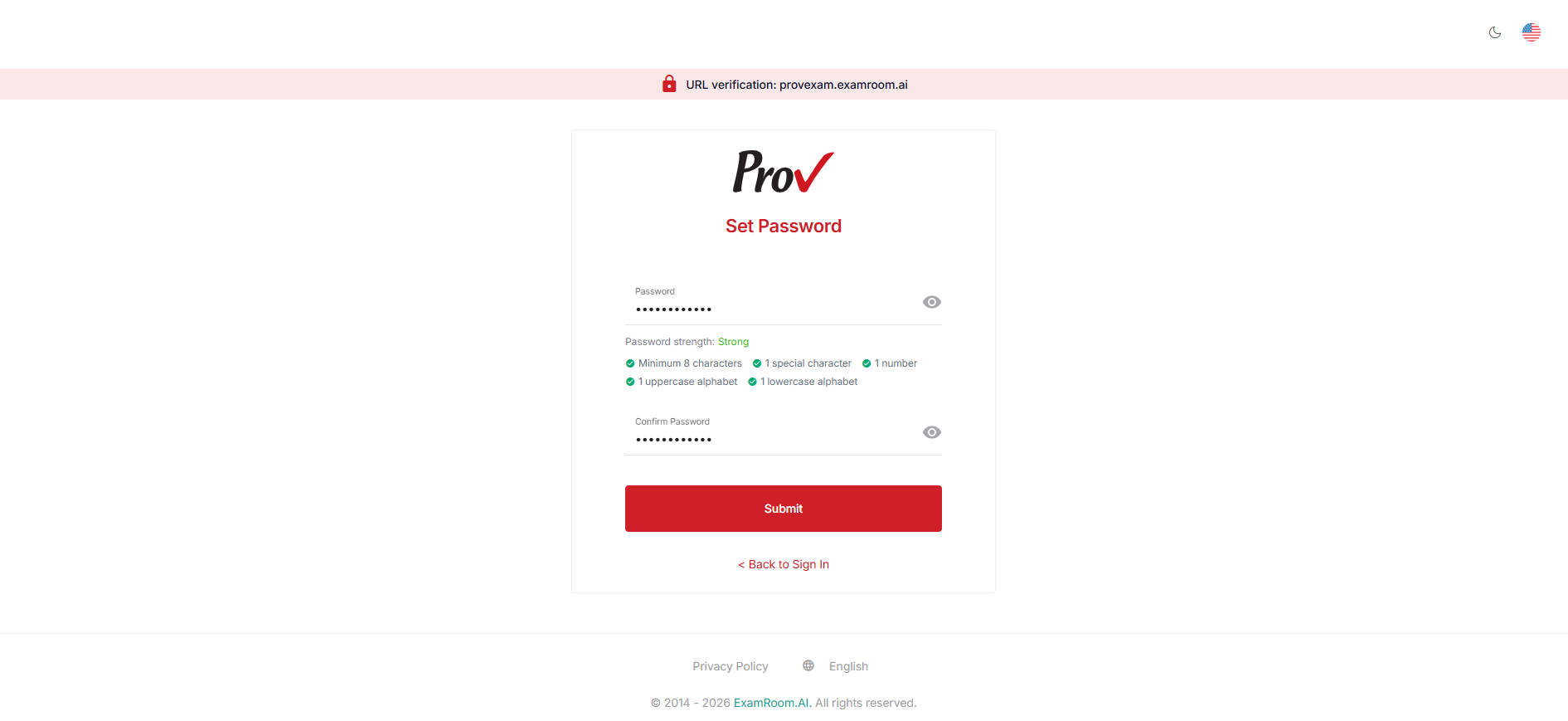
- Set your password, confirm your password, and click Submit.
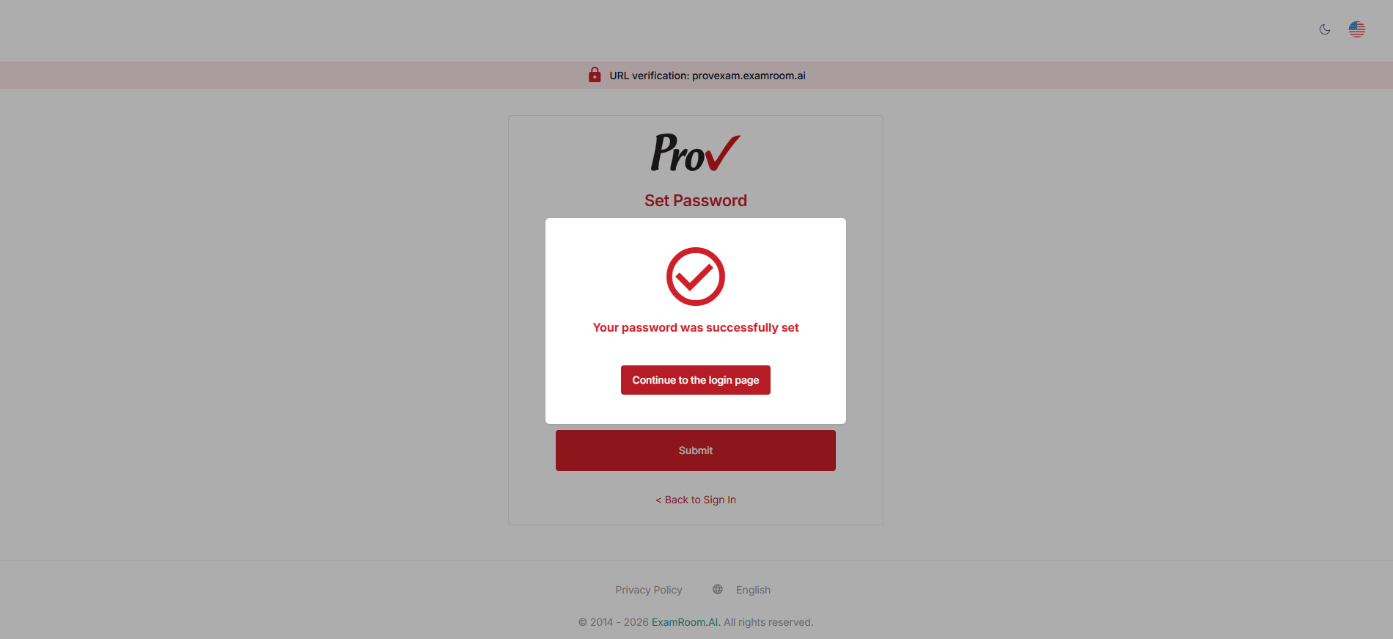
- A pop-up appears, confirming that your password was successfully set. Click “Continue to the login page” to proceed to the login page.
Note: To register for the exam, see: Register for Exam.