In-Person Testing
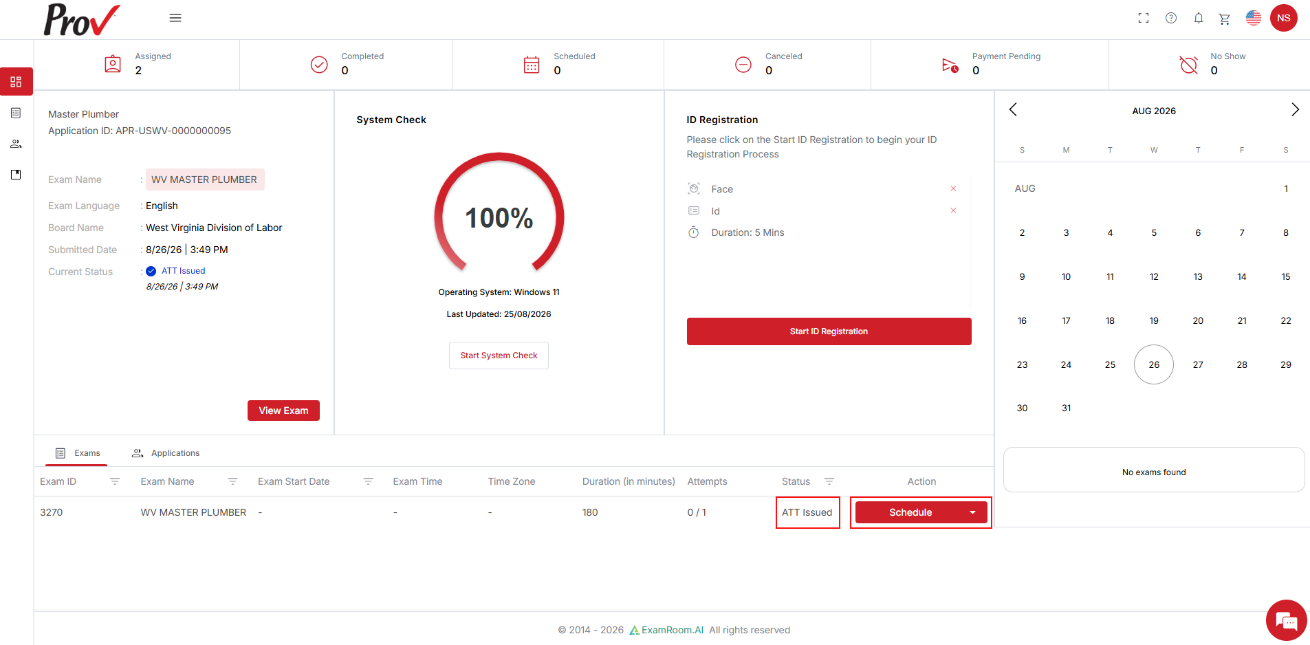
- On the Candidate Dashboard, go to the Exams section. If the exam status shows ATT Issued, click Schedule under Actions to proceed.
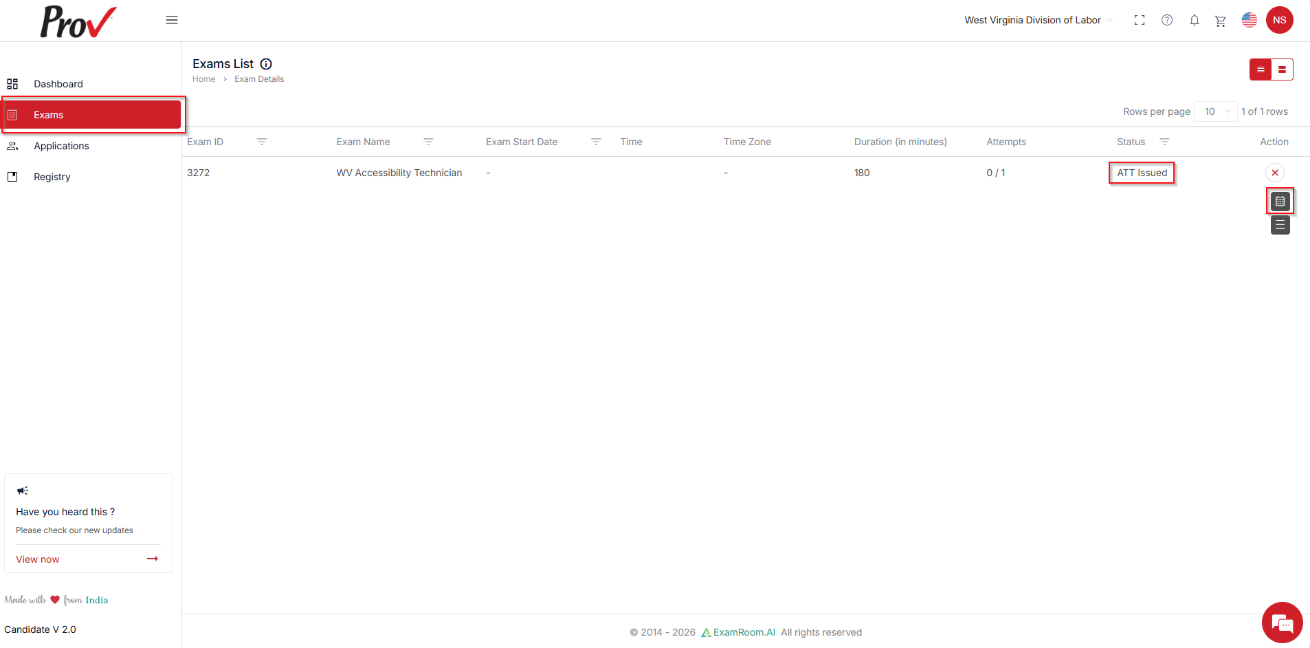
- Alternatively, you can also go to Exams from the side menu to find your registered exam listed. If the exam status shows ATT Issued, click Schedule under Actions to proceed.
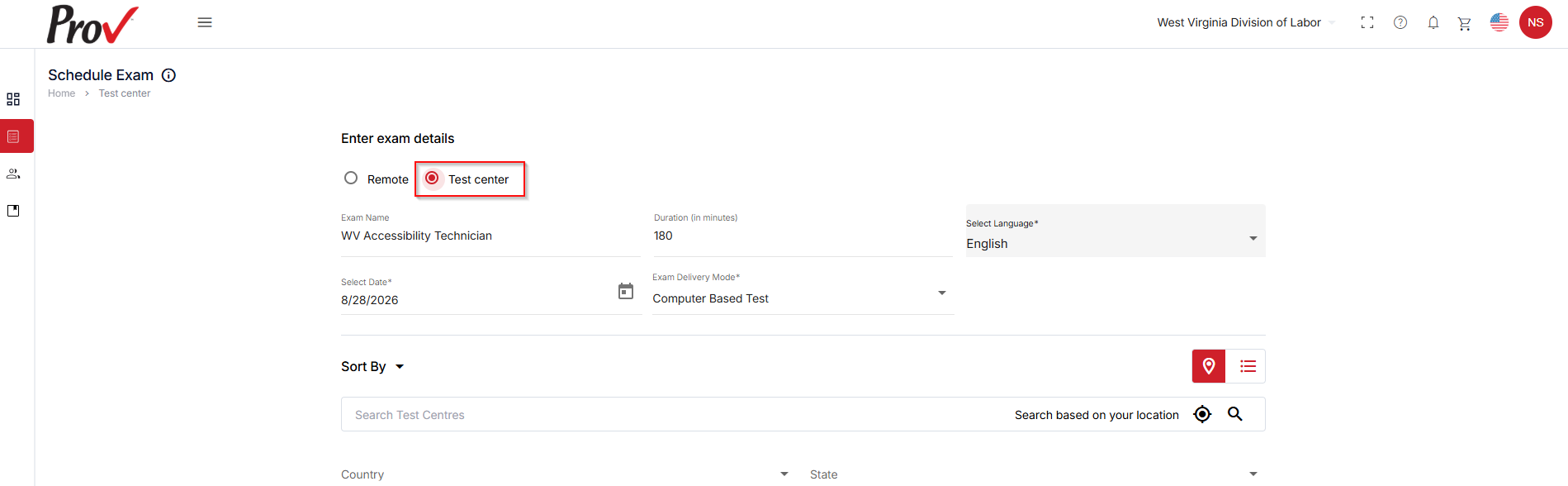
- In the Schedule Exam section, if you wish to take the exam at a test center, select the Test Center options. To schedule the exam online (Remote), refer to: Remote Exam.
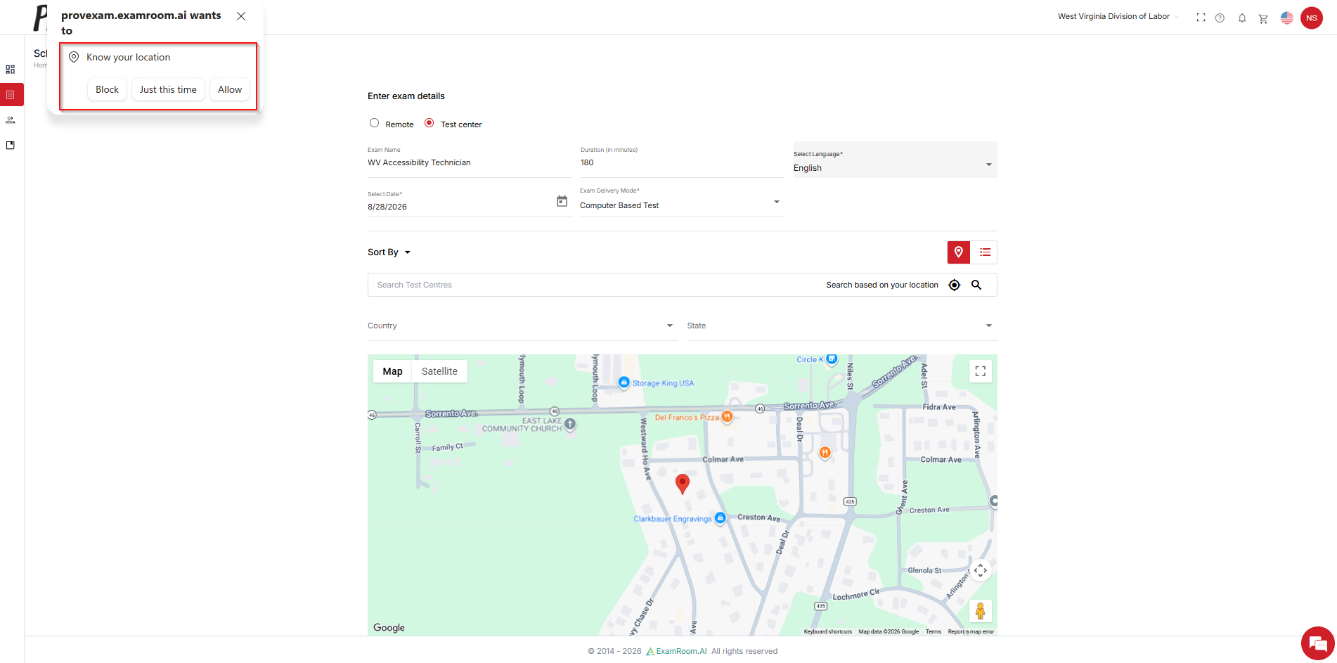
- If a pop-up appears on your screen to provide location access. Click Allow to grant access to your location.
- The Exam details are prefilled based on your exam registration.
- Verify the selected language for the exam. If you wish to change your preferred language, click the Selected Language field and select from the dropdown, if applicable.
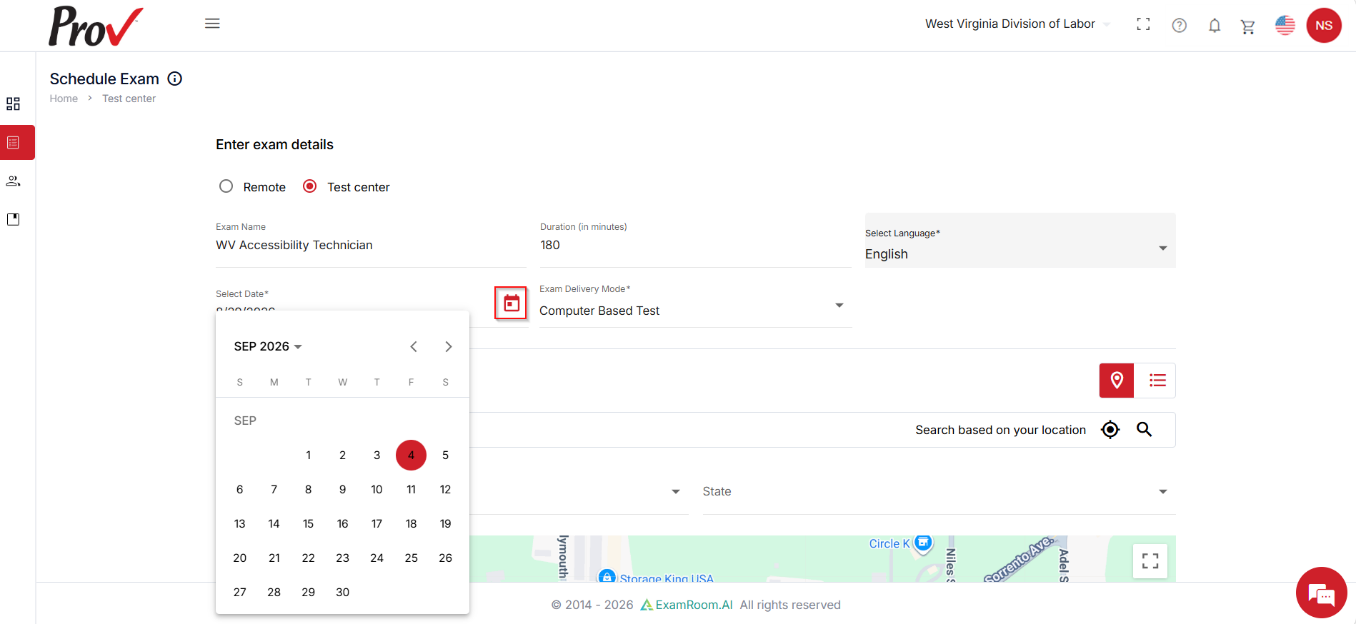
- By default, the next available date is selected. Click the Calendar icon to select your preferred date.
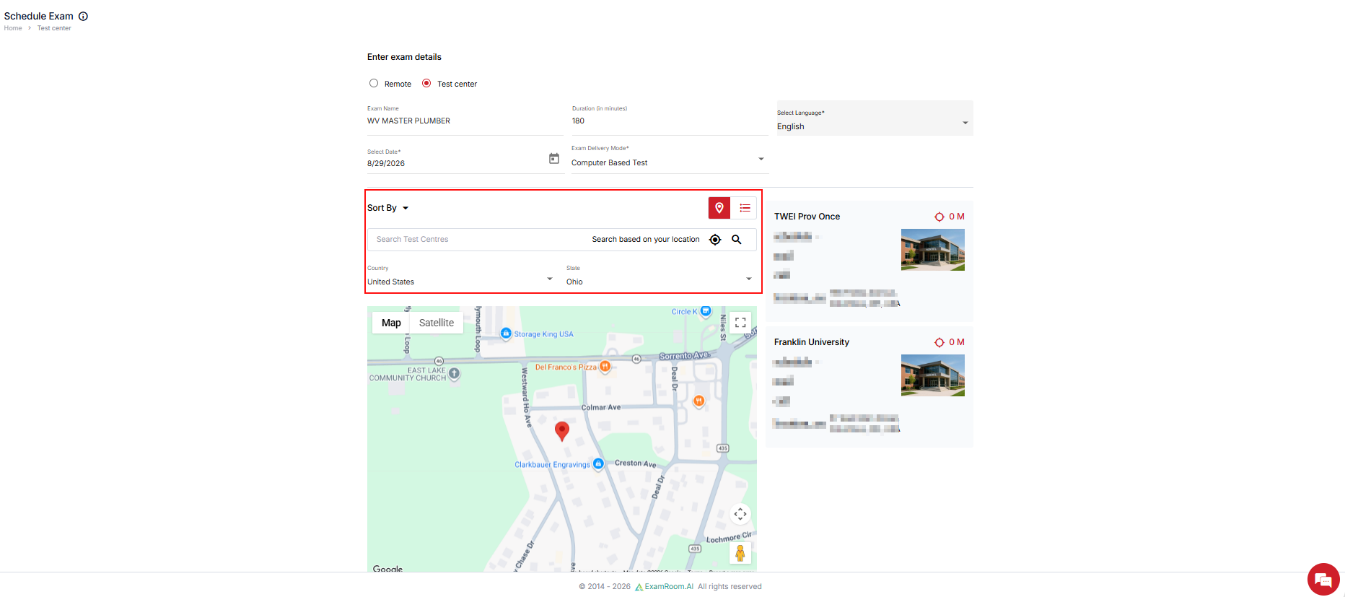
- Enter Country and State to see nearby test centers. You can also type in any center name and search.
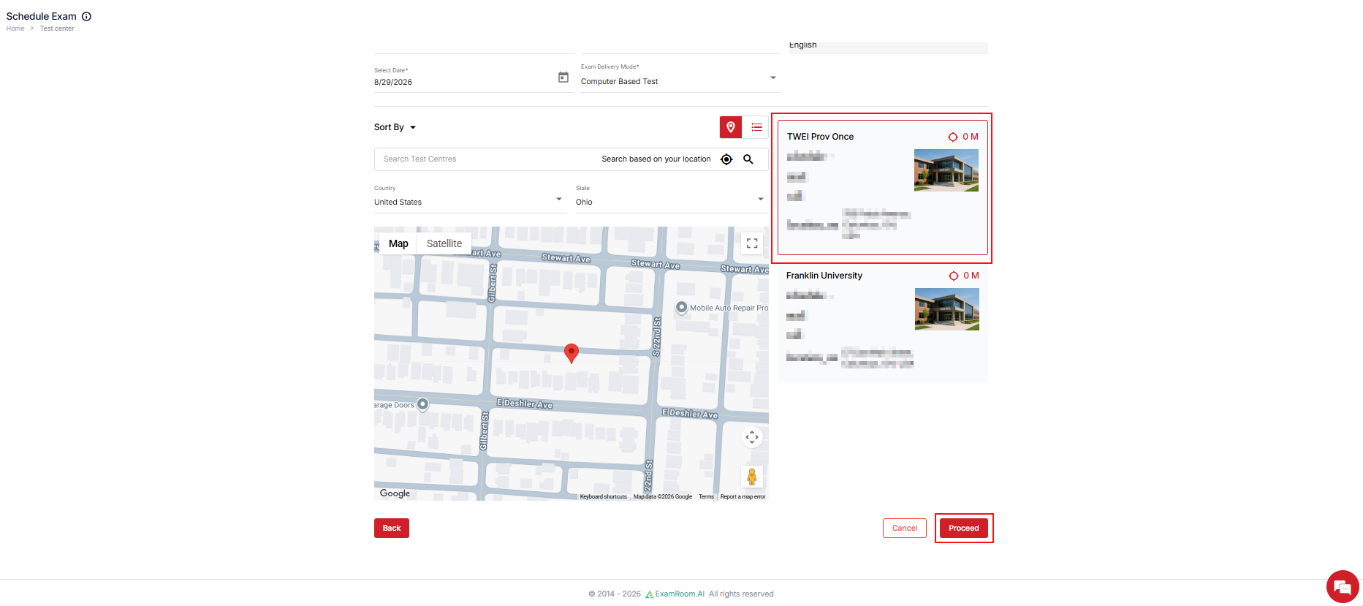
- The list of test centers for your location appears on the right side of the screen. Select your preferred center, then click Proceed.
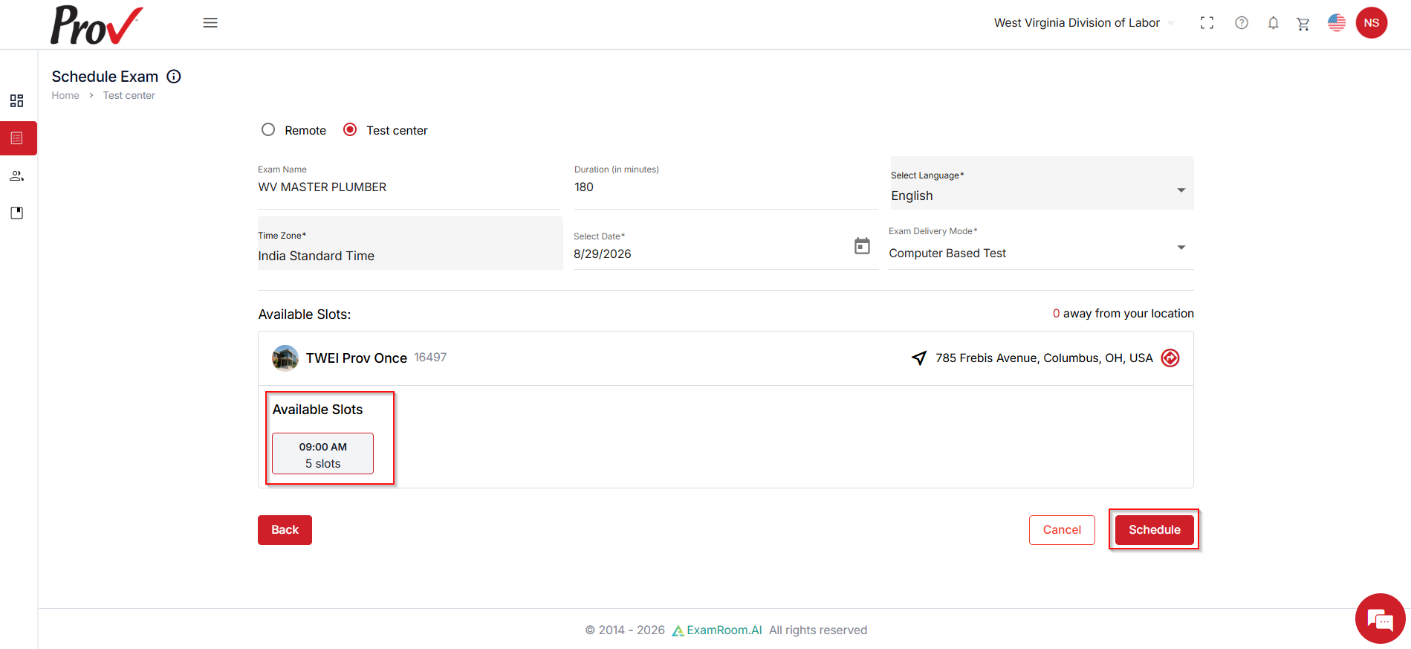
- Select your desired time slot and click Schedule.
- If the exam does not require payment, the exam will be scheduled automatically without payment, and a success notification will appear on the screen.
- If your exam requires payment, ensure you complete the payment, if applicable. Making the payment finalizes your exam appointment. Your exam will be added to the cart so you can complete payment. See Payment. The necessity of payment depends on the exam type or the sponsor's settings.